Viewers can subscribe to existing discoveries, presentations, and publications. This allows them to orchestrate the rendering of their content in their chosen format, on their own schedule, and with their chosen slice of data.
Note: This feature is only available with an Enterprise license.
Configure a Subscription
Open the Subscribe dialog, where you configure your subscription and any associated distributions.
Tip: You can also view scheduled subscriptions in the CMS and check the output content in your Subscription feed.
Discovery
If you open a discovery in the Viewer Client using a direct URL link or link-back from a publication, the Subscribe button is typically found in one of the following locations:
- Visualization panel - The option opened from the Hamburger Menu at the top-left (this panel is like the Present Runtime Menu below).
- Dashboard Menu - The Navigation Bar along the top of the browser:

Presentation
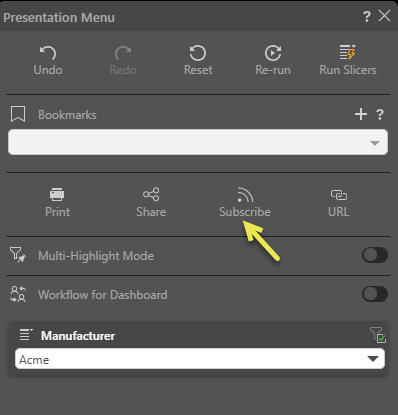
If you open a presentation in the Viewer Client using a direct URL link or link-back from a publication, the Subscribe button (yellow arrow below) is typically found in the Present Runtime Menu (accessed from the Hamburger Menu):
Publication
If you are a Viewer user, you can see publications in the Content Manager views including the Hub's Content panels. Clicking the Tile or List item that represents the publication you are interested in (purple highlight below) opens the Subscribe dialog:
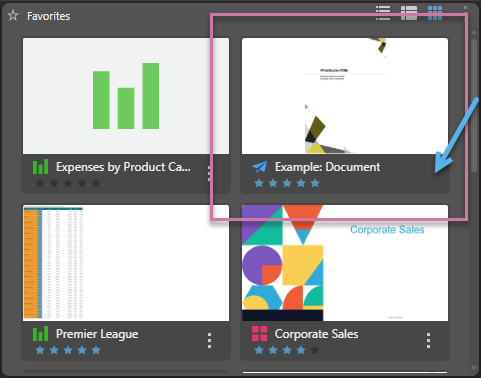
Note: When displayed in the Viewer, publications do not have a context menu (blue arrow above). This is because Subscribe is the only available function.
Subscribe dialog
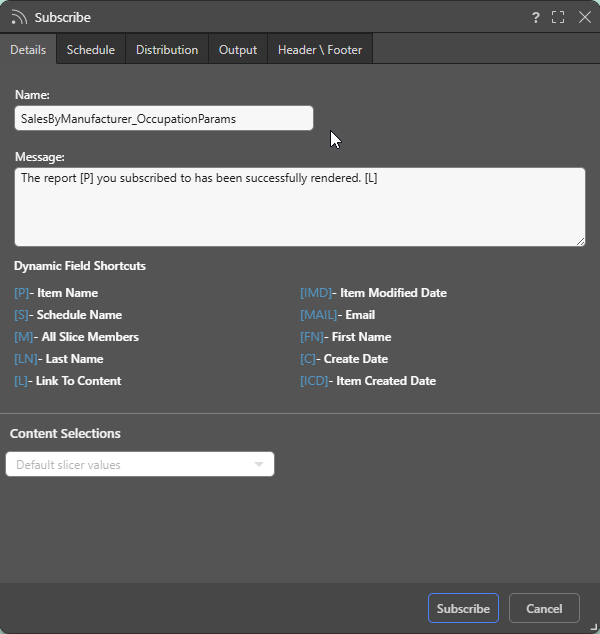
You can work through the tabs in the Subscribe dialog to configure the subscription. This includes naming and describing your subscription, configuring the schedule for the subscription job, and configuring the list of recipients and method of distribution.
Note: You can use the Viewer to subscribe to presentations, discoveries, or publications. The tabs and options in this dialog differ depending on the content type.
Details
- Name: Supply a name for your subscription. By default, the subscription name is based on the file name.
- Message: Add a message that describes the purpose of the subscription. You may include "Shortcut keys" in your message. These variables will be replaced with an actual value on generation, for example, [L] will incorporate a Link to the content.
Content Selections
Note: The Content Selections field is only available in Discover, Present, Tabulate, and the Viewer Client.
If the file contains slicers, you can use the Content Selections dropdown list to indicate which slicer selections to include in the exported content:
- Default slicer values: The default slicer value will be used for the subscription.
- Current slicer values: Presentations only. The value displayed at runtime when the subscription was started is the value that will be used in the subscription.
Schedule
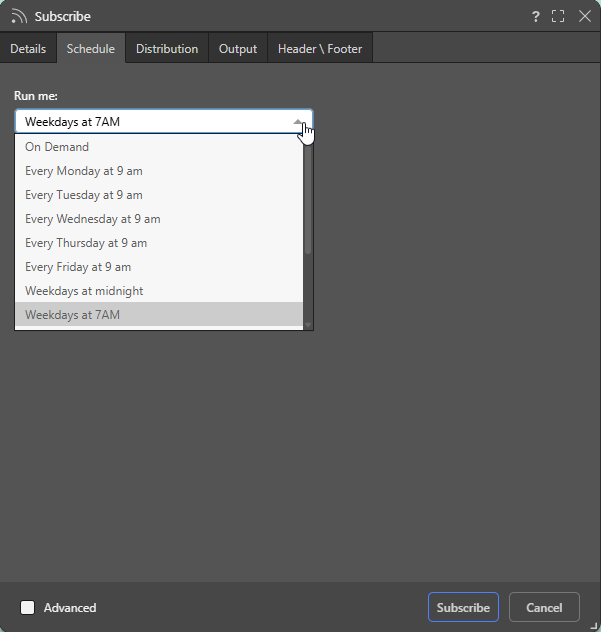
Configure the Schedule for the subscription job:
- On Demand: Select On Demand to trigger the schedule either when the underlying data model is reprocessed or through an API call.
- <Preset>: Select one of the Preset options, such as "Every Monday at 9am," to create a simple, repeat schedule for your subscription.
- Select the Advanced checkbox at the bottom of the dialog to create a custom schedule using the advanced options.
Tip: When you select an "Every..." preset and today's start time has already passed, you can still run the schedule today by selecting Run now in Advanced settings.
Important: For subscriptions, the schedule run time acts as the current date when evaluating date-based filters that use functions. This means that, if your report contains a date slicer where the Last Month function has been selected, the slicer selection will be the last month relative to the schedule execution time and not from a fixed date. For more information, see Dynamic Dates.
Note: Pyramid uses your time zone for the time and date settings by default. If you want to check that it has selected your time zone correctly, or you want to schedule times and dates in a different time zone, use the Timezone option in the Advanced settings.
- Click here to learn more about Advanced Subscriptions
Distribution
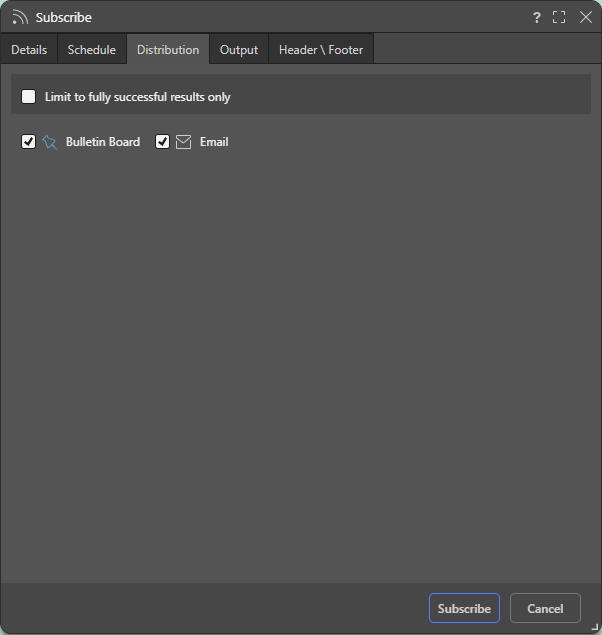
Limit to fully successful results only
Select the Limit to fully successful results only checkbox to prevent automatic distribution where content was not built completely successfully; that is, where a scheduled build "finished with errors" (or is a "Partial Success" in the language of the Task Manager):
- Where this option is not selected (default), the output is built and automatically distributed according to the schedule. The broken item is simply excluded from the output.
- Where this option is selected, the output is built with the missing broken item but it is not automatically distributed. You can still view the built output in the Schedule Manager.
Basic Distribution Options
Use the checkboxes to subscribe as yourself:
- Bulletin Board: Receive subscribed output through the Pyramid Bulletin Board.
- Email: Receive subscribed output by email.
Note: You can only configure the Basic Distribution options from the Viewer.
- Click here to learn more about configuring the Distribution.
Output
From the Output tab, choose the required output type, then set your preferences for that selected output. The options on this tab are typically the same in the Print and Export dialog.
Note: There is no option to spool the print job, because this is not relevant for scheduled subscriptions.
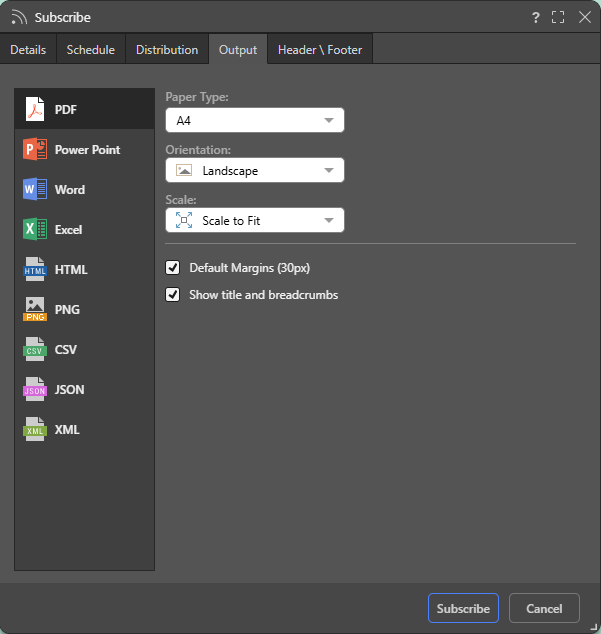
- Click here to learn more about the output selection from the Discover help.
Header \ Footer
Note: The Header \ Footer tab is only available in Discover or in the Viewer when subscribing to a discovery. It is also only shown if one of the relevant Output types is selected.
The options are used to configure the output report's headers and footers:
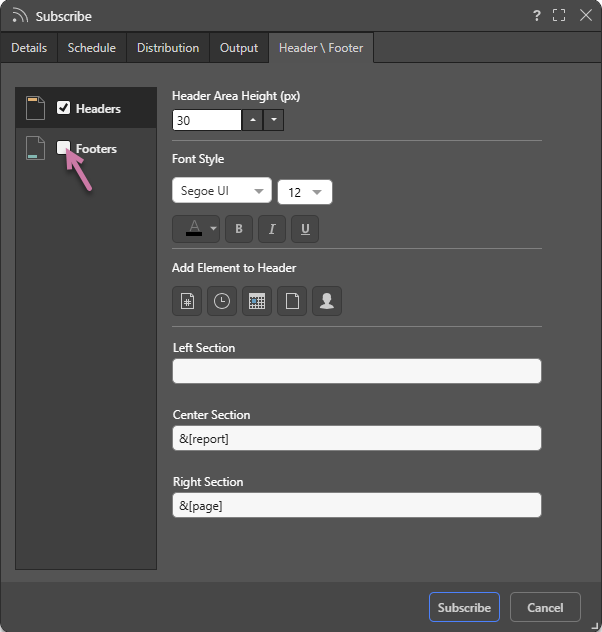
Enable Headers or Footers
- To enable headers, select the Header checkbox.
- To enable footers, select the Footer checkbox (purple arrow above).
Configure Headers or Footers
- Header \ Footer Area Height: Set the area height (in pixels) of the header or footer.
- Font Style: Select the font formatting options, including font type, size, text color (using the Color Picker), and emphasis (bold, italic, or underline).
- Add Element to Header: Use the buttons to copy a variable representing a page number, time, date, report name, or user name into the Left, Center, or Right Section of the header or footer. By default, each is added to the Left Section field, but you can select either Center Section or Right Section to copy the variable into that field instead.
- Sections: Add content to the Left, Center, or Right of the header or footer using the fields: Left Section, Center Section, or Right Section.
Note: The Header \ Footer tab is identical to the one in the Print & Export dialog in Discover.
- Click here to learn more about configuring headers and footers from the Discover help.
Related information
Data Source Authentication
If you’re using Windows Authentication or SAP Logon Tickets to connect to your data source, you may be prompted to enter Authentication credentials when saving your changes.
- Click here to learn more about Data Source Authentication.